
Connect Your Klaviyo Account
Step-by-step guide on how to get your Klaviyo account connected
Step 1 Create an API Key
Once you enter your account, click on Settings and go to the tab Account then click API Keys

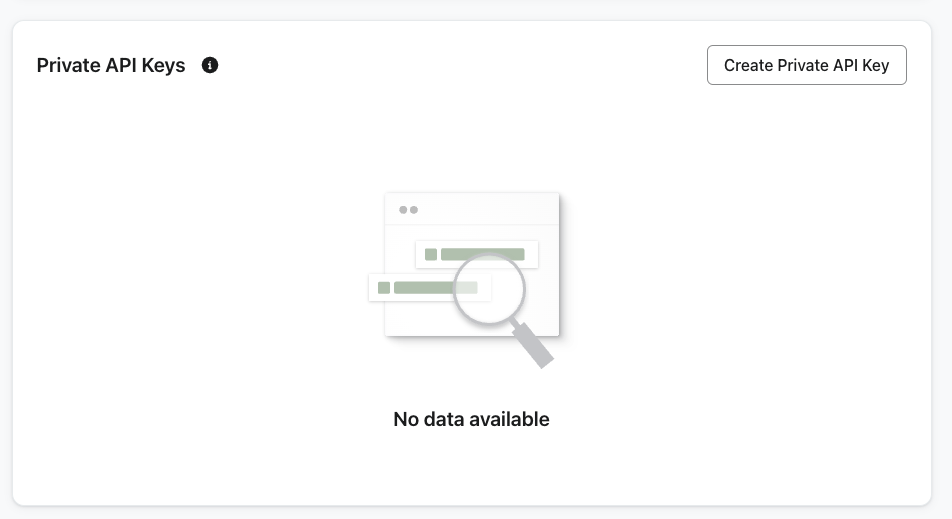
You should now see all of your existing API Keys with the option to create a new API Key. Click "Create Private API Key".
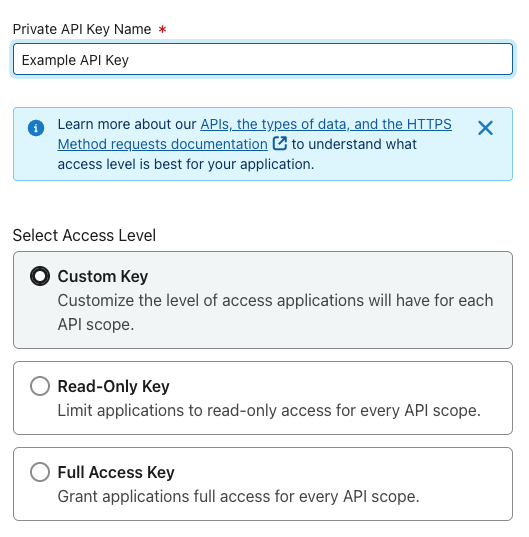
Next, you need to give your new API Key a descriptive name and choose "Custom Key". This is important as it will allow you to choose only the specific permissions Shoppy Monkey requires, rather than limited or full access.
Lastly, you will need to assign your new API Key the permissions Shoppy Monkey requires to service all events. These permissions are Events, Lists, Profiles & Subscriptions.




Step 2 Connect Your Account To Shoppy Monkey
You are now ready to connect your Klaviyo account to Shoppy Monkey. Once you are logged into you are account go to Settings, choose the section called Messaging and select Klaviyo from the dropdown menu.
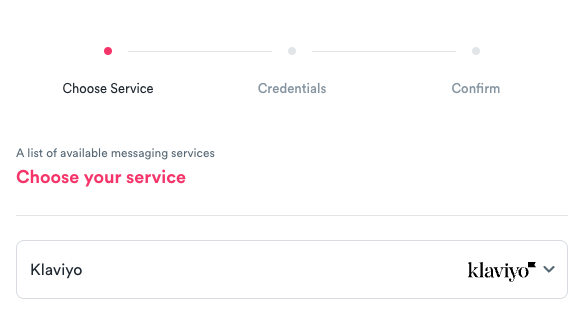
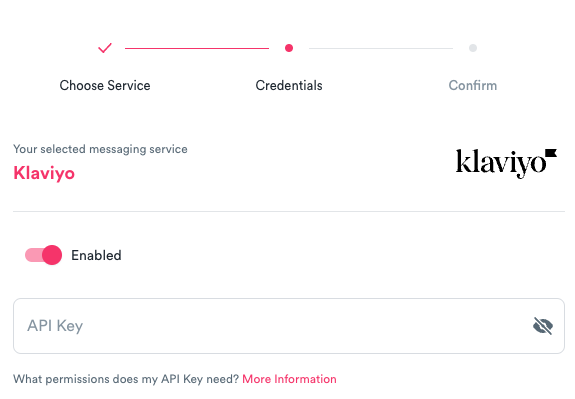
Click next and enter your API Key from the steps above.
Shoppy Monkey
Resources
Support